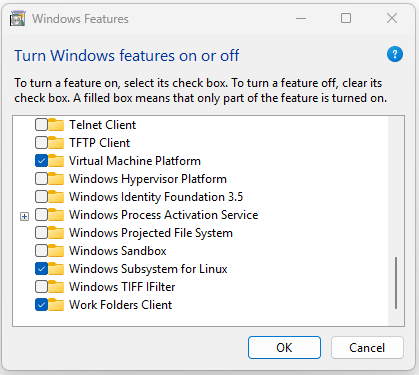
1.Search and Launch “Turn windows features On or Off” on windows start menu

2.Check to enable :
“Virtual Machine Platform”
“Windows Subsystem for Linux”
Click OK to enable Features
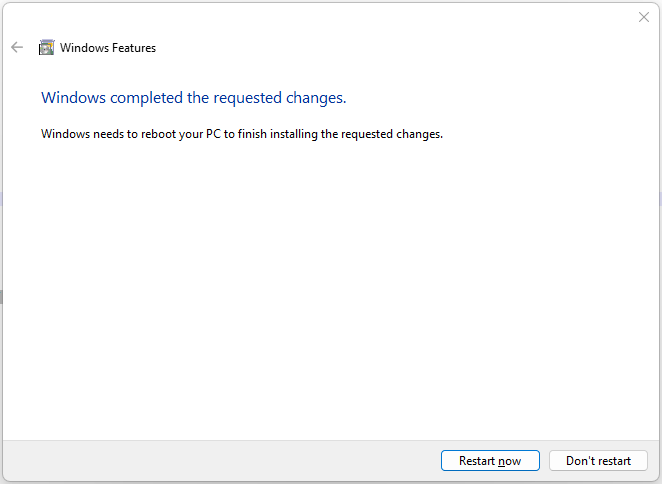
3.Click “Restart Now” to apply changes
4.Once restarted, open CMD terminal and run “wsl –status” for example to check wsl enabled
If not installed properly, use “wsl.exe –install” to install in the terminal
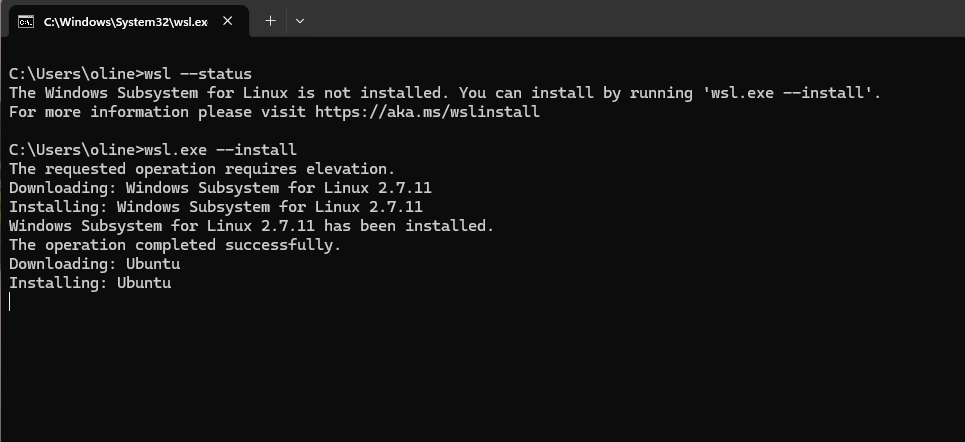
C:\Users\oline>wsl.exe –install
The requested operation requires elevation.
Downloading: Windows Subsystem for Linux 2.7.11
Installing: Windows Subsystem for Linux 2.7.11
Windows Subsystem for Linux 2.7.11 has been installed.
The operation completed successfully.
Downloading: Ubuntu
Installing: Ubuntu
Distribution successfully installed. It can be launched via ‘wsl.exe -d Ubuntu’
Launching Ubuntu…
Provisioning the new WSL instance Ubuntu
This might take a while…
Create a default Unix user account: oline
New password:
Retype new password:
passwd: password updated successfully
usermod: no changes
Help improve Ubuntu!
Help us improve Ubuntu features and compatibility by sharing system reports with Canonical.
Reports are sent anonymously and do not contain any personal data.
For legal details, please visit: https://ubuntu.com/legal/systems-information-notice
We will save your answer to Windows and will only ask you once.
Would you like to opt-in to platform metrics collection (Y/n)? To see an example of the data collected, enter ‘e’.
[Y/n/e]: e
{
“insightsVersion”: “0.9.3ubuntu”,
“collectionTime”: 1787052963,
“systemInfo”: {
“hardware”: {
“cpu”: {
“name”: “Intel(R) Core(TM) i7-10810U CPU @ 1.10GHz”,
“vendor”: “GenuineIntel”,
“architecture”: “x86_64”,
“cpus”: 12,
“sockets”: 1,
“coresPerSocket”: 6,
“threadsPerCore”: 2
},
“memory”: {
“size”: 7742
},
“disks”: [
{
“size”: 356,
“type”: “disk”
},
{
“size”: 159,
“type”: “disk”
},
{
“size”: 2048,
“type”: “disk”
},
{
“size”: 1048576,
“type”: “disk”
}
]
},
“software”: {
“os”: {
“family”: “linux”,
“distribution”: “Ubuntu”,
“version”: “26.04”
},
“timezone”: “EDT”,
“language”: “C”
},
“platform”: {
“wsl”: {
“subsystemVersion”: 2,
“systemd”: “used”,
“interop”: “enabled”,
“version”: “2.7.11.0”,
“kernelVersion”: “6.18.33.2-microsoft-standard-WSL2”
}
}
}
}
Would you like to opt-in to platform metrics collection (Y/n)? To see an example of the data collected, enter ‘e’.
[Y/n/e]: y
oline@DESKTOP-5LKLBBL:/mnt/c/Users/oline$
NB: Keep securely the password of the root user entered
5.Check the status in a new terminal
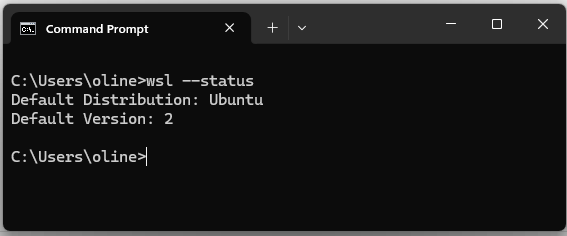
6.To update wsl

NB: If you have an error “wsl command not found”, close and open terminal as administrator
7.Defaut version
NB: If Default Version of wsl is 1, update wsl to version 2 and set default version to 2 using :

 BLOG DBA TIPS AND TRICKS